
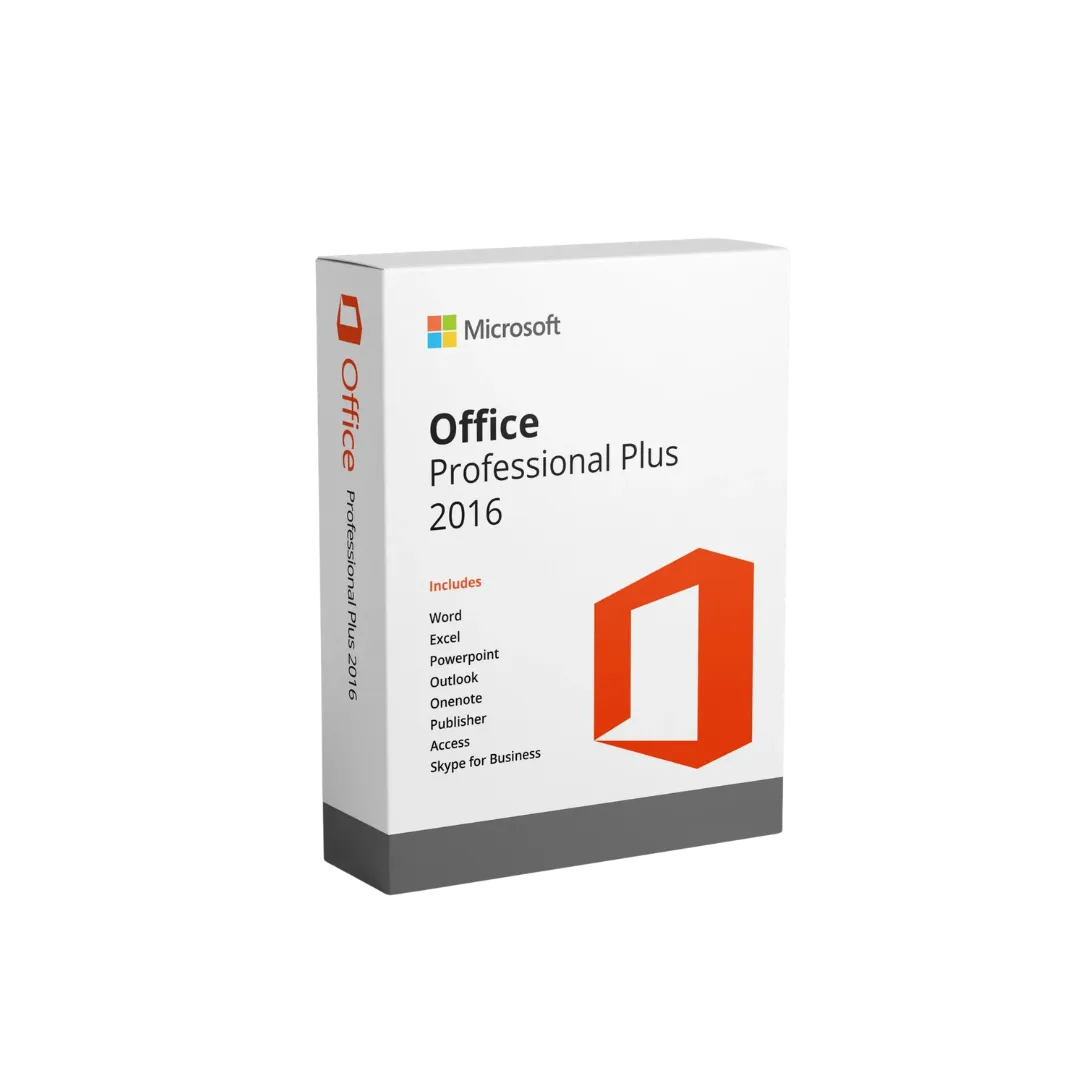
Microsoft Office 2016 Professional Plus License Key – Single User
₨24,999.00
Microsoft Office 2016 Professional Plus License Key – Single User
About this item
- Single User License
- Digital Activation
- Email Binding
- System Change Support
Warranty!
30-Day Replacement Warranty
Active support till Activation! Key will be delivered via email
Description
Microsoft Office 2016 Professional Plus License Key – Single User
Microsoft Office 2016 Professional Plus single user Digital Activation Key License with Email Binding
Microsoft Office 2016 Professional Plus Single User Digital Activation Key License With E-Mail Bind provides access to essential Microsoft Office applications for everyday productivity, office work, documentation, spreadsheets, and presentations. This digital license is designed for a single user and comes with email binding for lifetime activation. Once successfully activated and linked to your email account, the license can be reused after Windows reinstallation or a system change, subject to the license’s activation and transfer conditions. It is delivered digitally, eliminating the need for a physical installation disc.
Key Features
- Lifetime Activation License
- Single User License
- Digital Product Key Delivery
- Email-Bound Activation
- Reusable After Windows Reinstallation
- Reusable After System Change (subject to activation conditions)
- 30 Days Replacement Warranty
Microsoft Office 2016 Professional Plus
Office 2016 Professional Plus is designed for productivity at home, in educational environments, and in professional workplaces. It includes applications such as Word, Excel, PowerPoint, Outlook, Access, Publisher, and OneNote.
Whether you are preparing reports, managing data, creating presentations, or handling everyday office documents, Office 2016 Professional Plus provides a familiar set of productivity tools.
How to Install and Activate Microsoft Office 2016 Professional Plus
Step 1: Download Microsoft Office
Visit Microsoft’s official Office installation and reinstallation guide:
https://support.microsoft.com/en-us/office/download-and-install-or-reinstall-office-2021-office-2019-or-office-2016-7c695b06-6d1a-4917-809c-98ce43f86479
Follow the available instructions for your license type to obtain and install Office 2016.
Step 2: Install Office 2016
Open the downloaded Office installation file.
Allow the installation process to begin.
Follow the on-screen instructions.
Wait until the installation is complete.
Step 3: Open an Office Application
Open Microsoft Word or Excel.
Wait for the application to load.
If an activation or sign-in window appears, follow the instructions provided for your license.

Step 4: Enter Your Product Key
If Office requests a product key:
Open Word.
Select File.
Select Account.
Choose Change Product Key, if available.
Follow the on-screen activation instructions.

Step 5: Verify Activation
Open Microsoft Word.
Select File > Account.
Check the Product Information section.
Confirm that Office displays an activated product status.
Your Office installation is ready to use once activation is successfully completed.
For similar products, visit here.
Reviews
There are no reviews yet.